When I think about the experience we want to give our maintenance customers, a lot of it comes down to being informed. They should be able to see what’s happening at their property, tell us what needs attention, and find the answer to a question without starting the same conversation again. Daily’s customer portal brings those interactions together around the property and the work being done there.
This walkthrough follows the maintenance customer’s experience, from opening the portal to following a request through completion. Press Play tour to move through six screens, or choose a step and take your time. The screenshots show Daily’s current interface with fictional customer, company, and billing details; the information a customer sees depends on their property and the work shared with them.
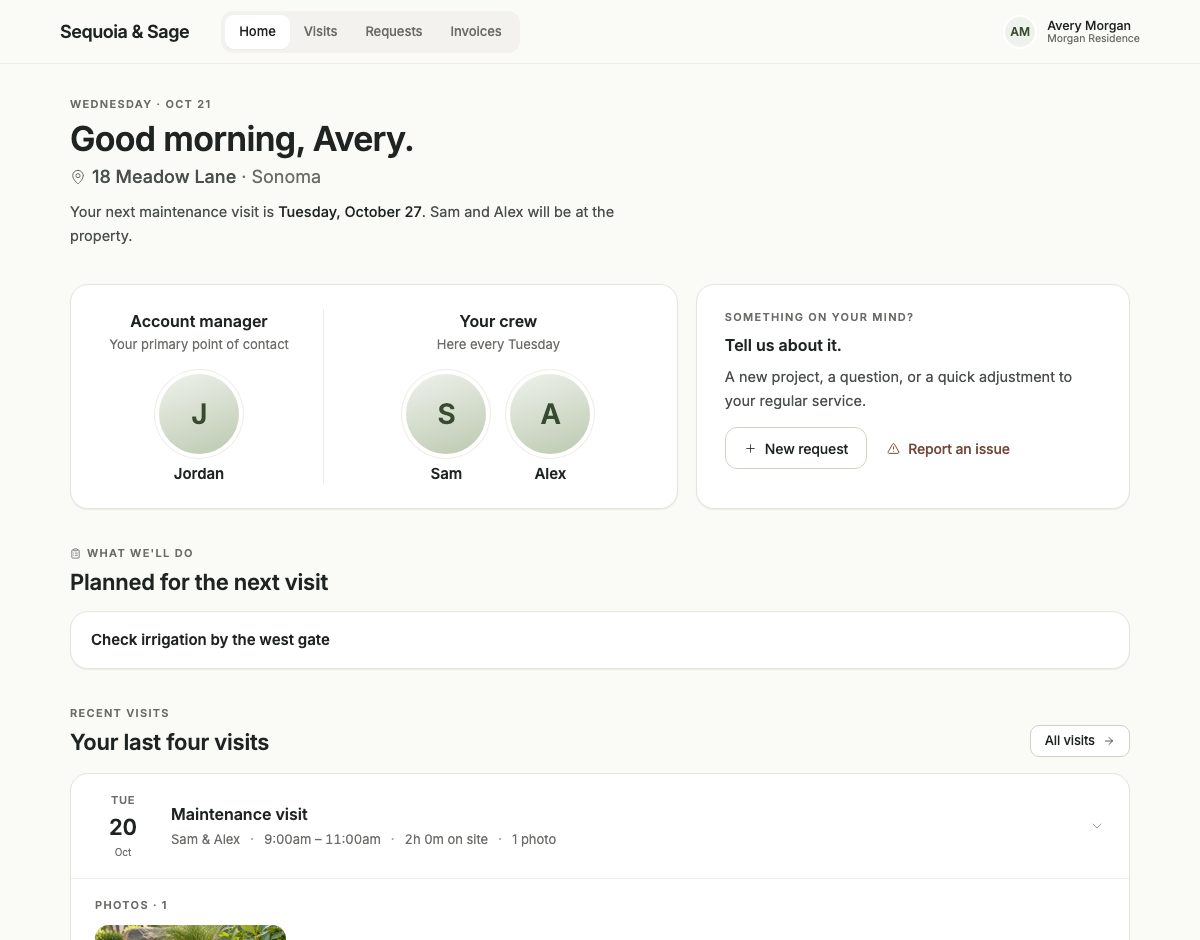
See the next visit, meet the crew, and start a request from the property’s home screen.
Six screens · 48 seconds · Select any step to pause and explore. Screenshots of Daily’s interface with fictional demo details.
1. Open the portal your landscape company provides
Start with the portal link your landscape company has shared with you. If you’re asked to sign in, use the email address the company has on file, select Send Login Code, and enter the six-digit code from the email. The login email also provides a sign-in link. If access has expired, request a fresh code; if you can’t get access, contact your landscape company so they can check the email and property access on your account.
For an owner introducing the portal to customers, this is a useful first step to get right. Give the customer their link, explain which email address to use, and show them where to find their property information. That small introduction makes it easier for them to return when they have a question.
2. Start with Home to see what’s coming up
The Home tab brings together the property’s upcoming maintenance visit, crew information, and relevant work. Where a next visit is available, the page shows it alongside the schedule context. Planned work appears on Home, and recurring instructions remain available in Standing requests under Requests. Shared observations or other updates can also appear when the team has added them.
The useful question here is simple: does the customer understand what happens next? They can check the upcoming visit and see the context the company has shared. If something needs attention, New request and Report an issue provide a starting point without making the customer hunt for the right contact.
 Open full size ↗
3. Open Visits to review the work
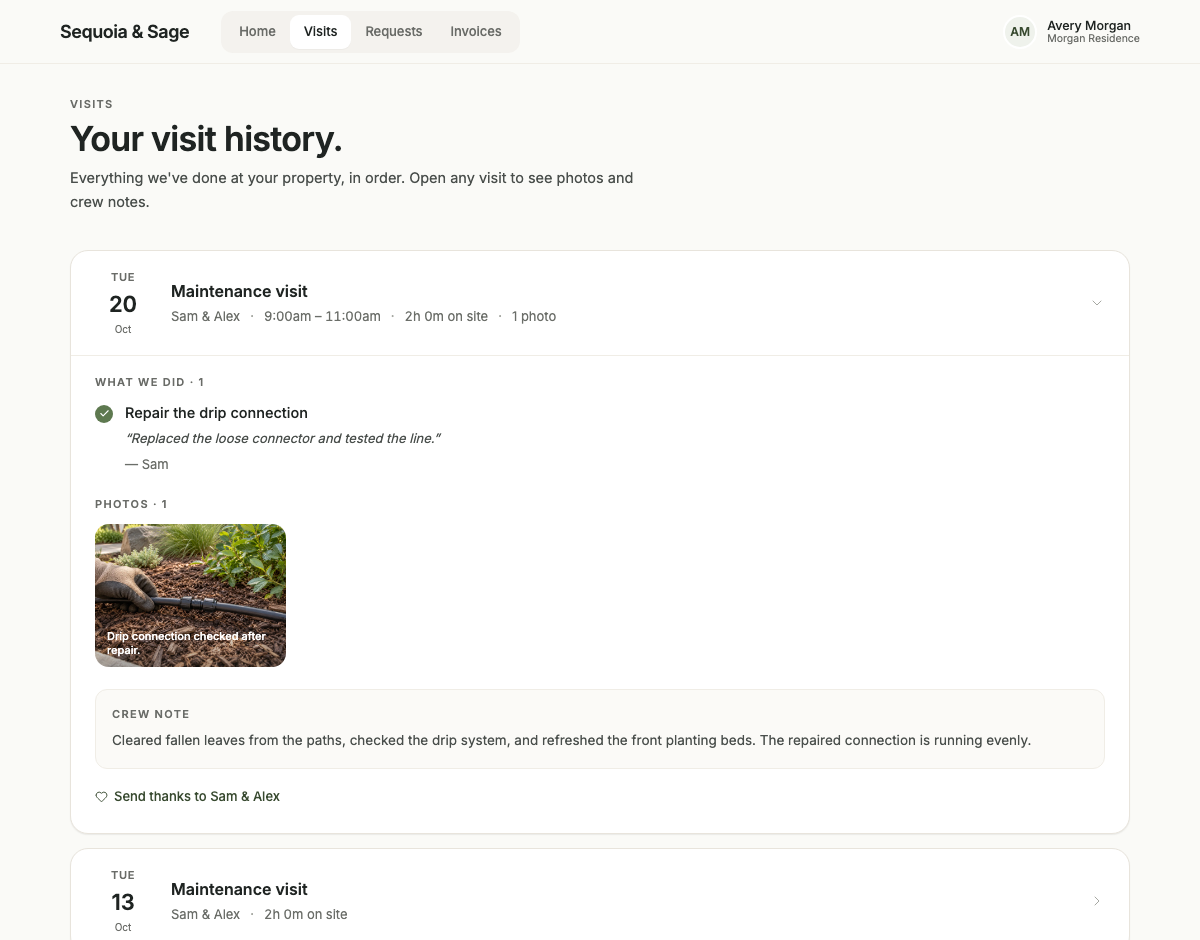
Select Visits to see the property’s visit history, with the newest activity first. Open a visit to review the available crew notes, photos, and recorded work. Site checks can appear in the history too, with the customer-facing information shared from those visits. Selecting a photo opens a larger view, making it easier to inspect a detail on a phone.
The amount of detail depends on what the team has recorded and shared. A useful photo and a clear note can explain something that would otherwise require a phone call: which bed was cleaned up, where a repair happened, or what the crew found during the visit. For an operator, this is a reason to make documentation part of the work and to capture information that helps the customer understand their property.
 Open full size ↗
4. Send a request with enough context to act
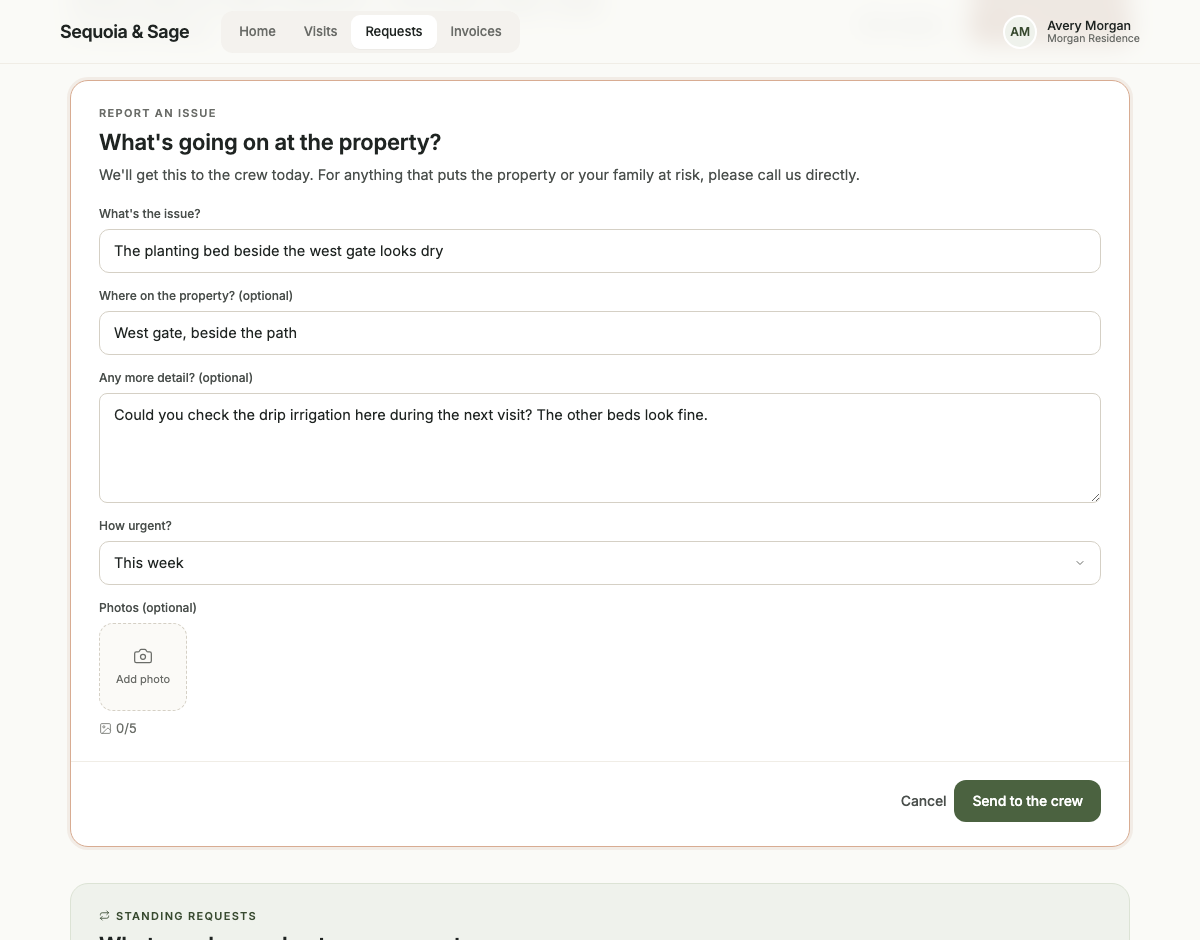
Use New request for a project, quote, or one-time service request, or Report an issue when something at the property needs attention. Describe what you need and where it is, add photos if they help, and submit the form. The request then appears in Requests, where you can return to it as the team responds.
For example, “The planting bed beside the west gate looks dry; could you check the irrigation?” gives the team a specific place and concern to investigate. A photo can make that description even clearer. Submitting the request creates a record for follow-up; the company still needs to review it and confirm the next step.
 Open full size ↗
5. Follow the conversation and review an estimate
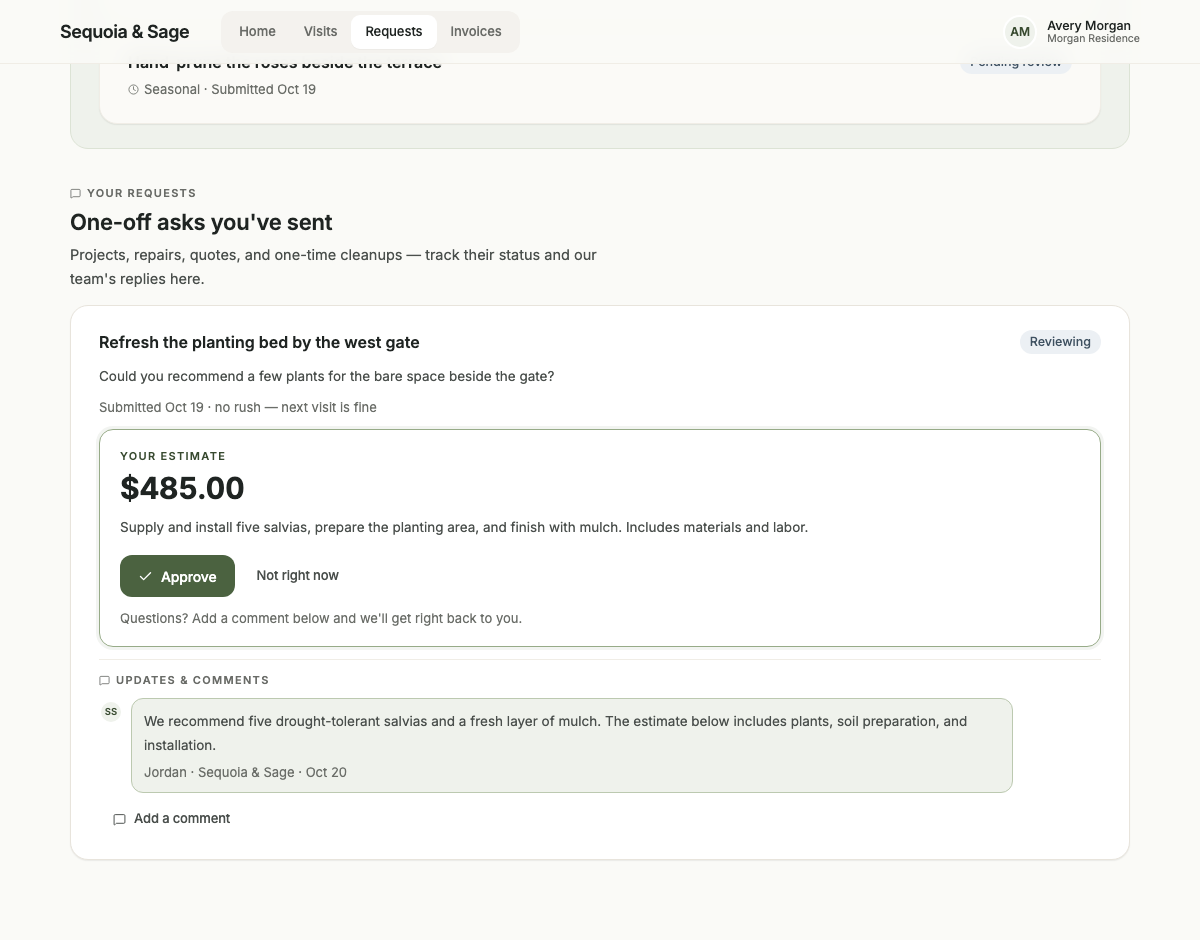
In Requests, each request brings together its status, customer-visible updates, and comments. Open the relevant request to read the team’s response or use Send comment to add information. The timeline shows stages such as Submitted, Reviewed, Scheduled, and Completed as the request progresses. Closed requests remain accessible through Show closed requests, so the earlier conversation is still available.
When the office shares an estimate on a request, you can review its amount and scope and choose Approve, or ask a question in the comments. Choose Not right now if you want to decline. An approved estimate still needs scheduling: the confirmation says the team will reach out to schedule, so the customer should look for that follow-up before expecting a particular service date.
 Open full size ↗
6. Keep recurring instructions in Standing requests
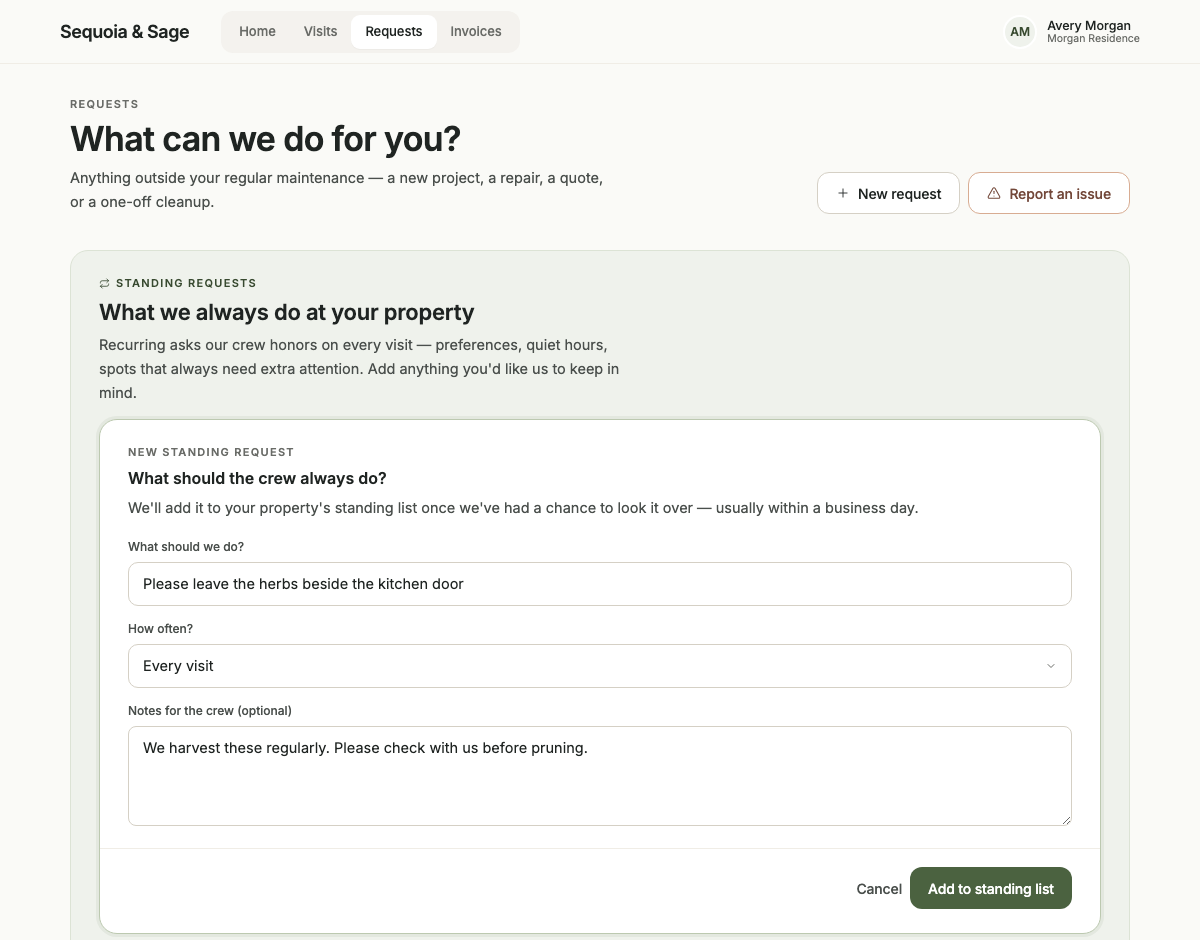
Some instructions matter every visit. A preference for how an area is maintained or a recurring task belongs in Standing requests, where it can remain attached to the property. Open the standing-request section within Requests, select Add a standing request, describe the instruction, and submit it with Add to standing list.
New standing requests go to the office for review before becoming active. That gives the company a chance to clarify the scope and confirm how the request fits the service. Once active, the instruction is visible in the property’s standing list, giving the customer and team a shared reference for future visits.
 Open full size ↗
7. Review maintenance invoices
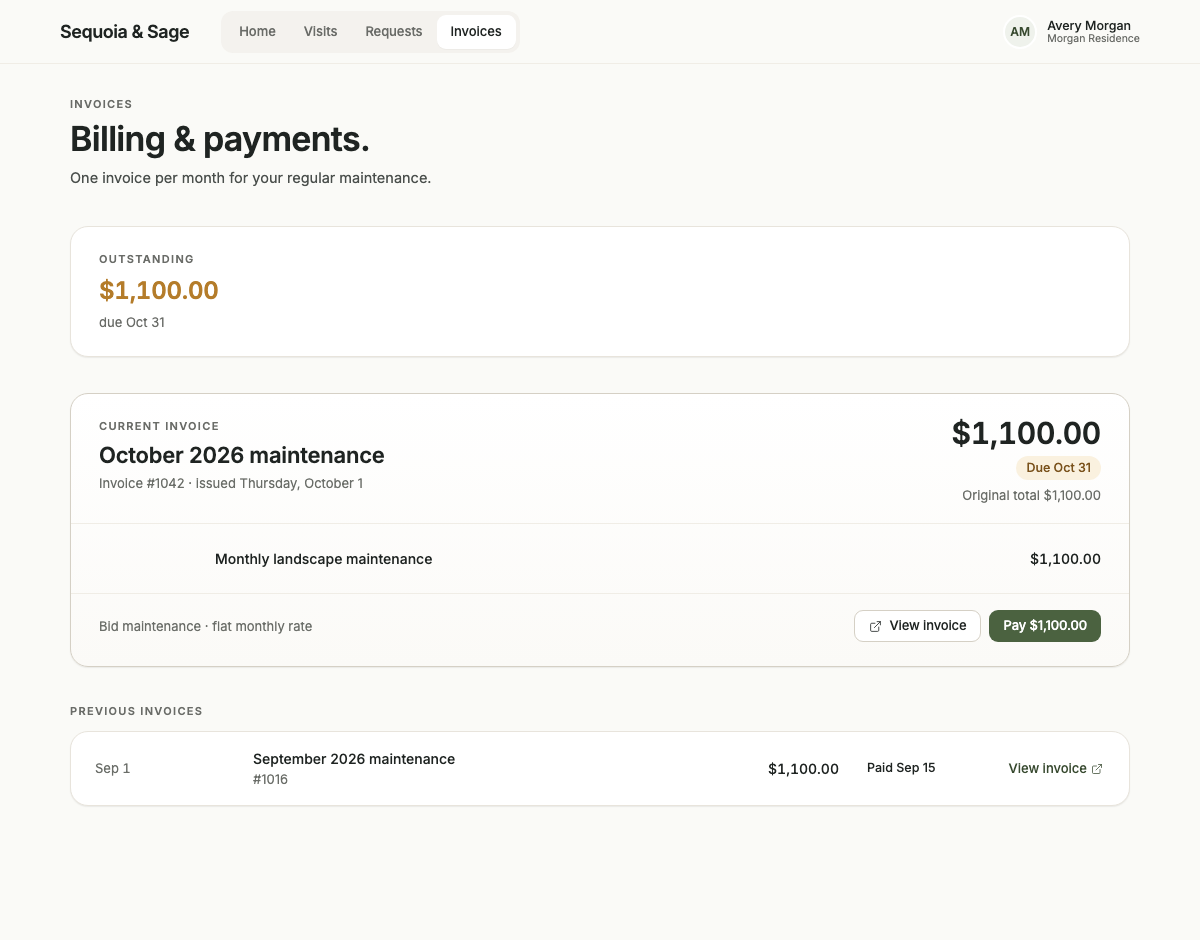
The maintenance portal’s Invoices section shows available maintenance invoices and their status. Where an invoice offers View invoice, the customer can open its PDF. A payment option appears when an outstanding invoice has a payment link available. These options depend on the individual invoice; the portal doesn’t imply that every invoice has an online payment link or downloadable document.
 Open full size ↗
Make the portal part of the service
The portal is most useful when the company builds a habit around it: record the work, review incoming requests, post a clear update, and follow through. Customers get a place to check progress and add context, while the team has a more consistent way to keep the conversation connected to the property.
That’s the connection I’m focused on while building Daily. Thoughtful work in the field should lead to a customer who understands how their property is being cared for. For more on the opportunity behind that approach, read The Service Gap in High-End Landscape Maintenance Is a Huge Opportunity. To see how the customer experience connects with the office and crew workflows, book a Daily demo.